
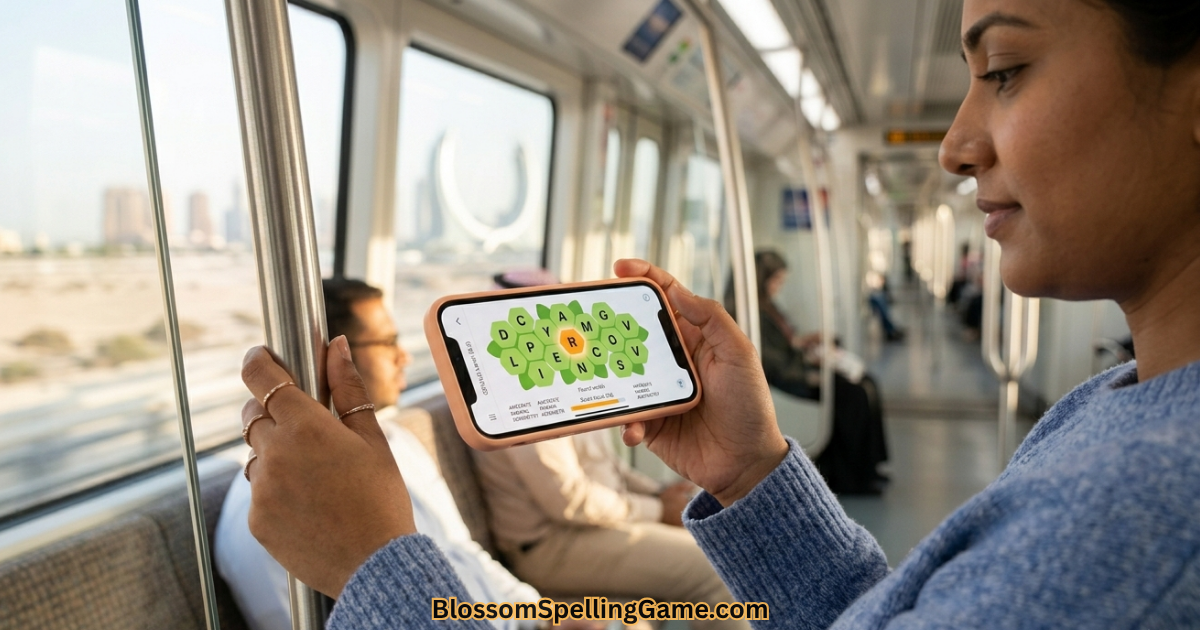
You want to play Blossom Word Game on your phone. Maybe you discovered it on a laptop and now you want it in your pocket. Maybe someone showed you the puzzle over their shoulder and you’re wondering if it’ll actually work on your specific device. Maybe you’ve been playing in your phone’s browser and something feels slightly off — the letters are cramped, you keep mis-tapping, autocorrect keeps “helping” you in the worst possible ways.
Whatever brought you here, the short answer is yes — Blossom Word Game works on mobile. It works well, actually. But there’s a real difference between “technically works” and “genuinely enjoyable on a small screen,” and that gap is worth understanding before you commit to making this your daily habit on the go.
This guide covers the actual mobile experience — not just whether it runs, but how it feels on different devices, what common mobile-specific frustrations trip players up, how to squeeze the best possible experience out of whatever phone or tablet you’re using, and which setup genuinely gives you the best Blossom session away from a desktop.
Let’s get practical.
Yes, You Can Play Blossom Word Game on Mobile
⚡ Quick Answer: Yes — Blossom Word Game is fully playable on mobile devices. The game runs in any modern smartphone browser (Safari, Chrome, Firefox, Edge) with no download required, and a dedicated app is also available on iOS and Android. BlossomSpellingGame.com is specifically optimized for mobile play and delivers a smooth experience on virtually any phone made in the last five years.
That said, “it works” is a starting point, not the whole story. The mobile experience varies depending on how you access the game, which device you’re using, and a few setup decisions that make a real difference in comfort and performance. The rest of this guide is about making it as good as it can be on your specific setup.
Mobile Browser vs. App: Which to Use on Your Phone?
This is the first decision most mobile players face, and it’s worth getting right from the start.
Playing in the mobile browser (Safari on iPhone, Chrome on Android) gives you instant access with zero setup — no download, no storage used, no account required. Open BlossomSpellingGame.com in your phone’s browser and you’re playing within seconds. The site’s responsive design adapts cleanly to any screen size, and the touch controls work exactly as you’d expect — tap a letter to select it, tap again to deselect, tap the center petal to submit.
Playing via the dedicated app adds features like push notifications, more reliable streak tracking, and offline access once the day’s puzzle has been loaded. If you want a reminder nudge when the new puzzle drops, or if you commute through areas with spotty signal, the app has real advantages. For the full app breakdown, see our dedicated Blossom Word Game App Guide.
The practical recommendation for most players: Start with the browser at BlossomSpellingGame.com. If after a week you find yourself wishing for notifications or offline access, download the app. Many daily players never bother with the app at all — the browser experience is that good on mobile.
One middle-ground option worth knowing: you can add BlossomSpellingGame.com directly to your phone’s home screen as a shortcut icon. On iPhone, open the site in Safari → tap the Share button → tap “Add to Home Screen.” On Android, open in Chrome → tap the three-dot menu → “Add to Home Screen.” This gives you a one-tap home screen icon that opens straight into the game, with no browser navigation visible — it feels almost identical to a native app, with none of the download overhead.
The Mobile Playing Experience: What to Actually Expect
Here’s what nobody tells you when they say “yes it works on mobile” — the tactile experience of playing Blossom on a touch screen is genuinely different from playing on a keyboard, and those differences affect your strategy in subtle ways.
Tapping vs. typing: On desktop, you type letters directly — fast, fluid, and familiar. On mobile, you tap individual petals on the flower grid. For most players this becomes natural within a few sessions, but early on you’ll notice it’s slightly slower than keyboard input. The upside: tapping the flower grid forces you to be more deliberate about each letter you choose, which can actually improve your word-selection discipline. You’re less likely to submit a word impulsively when each letter requires a conscious tap.
The shuffle button becomes more valuable on mobile. On desktop, you can hold the entire letter set in visual peripheral vision while focusing on forming words. On a phone screen, the letters are closer together and the grid is smaller, which can create a kind of visual tunnel vision. Tapping the shuffle button — which rearranges the outer petals into a different order — is worth doing more frequently on mobile than on desktop. It genuinely resets your visual perspective on the letters and surfaces word combinations you were missing.
Autocorrect is your enemy. More on this in the problems section below, but if you’re typing words using your phone’s keyboard (some browser versions allow this as an alternative to tapping letters), autocorrect will confidently “correct” valid but uncommon words before you can submit them. This is one of the most frustrating mobile-specific friction points in the game.
Brightness matters. The flower grid’s color contrasts — green petals, amber highlights, white background — read very well on modern phone screens, but playing in direct sunlight on a non-OLED screen can wash out the color distinctions between the center letter and the outer petals. If you’re playing outside, either boost your brightness to maximum or position the screen to avoid direct glare.
Best Screen Sizes for Playing Blossom
The game is designed to be playable on any screen, but some sizes are genuinely more comfortable than others.
Compact phones (under 6 inches): Playable, but the flower grid renders smaller and individual petal letters are tighter together. Players with larger fingers sometimes report mis-taps — accidentally selecting an adjacent letter instead of the intended one. Pinch-to-zoom on the browser version can help temporarily, though it disrupts the flow slightly. If you’re on a smaller phone and experiencing frequent mis-taps, try playing in landscape orientation — the grid typically renders larger when the phone is rotated sideways.
Standard smartphones (6–6.7 inches): The sweet spot. Most modern phones in this range render the Blossom grid at a comfortable size — letters are clearly distinct, the center petal is easy to identify, and tapping precision is reliable. This is the device range the mobile experience is most clearly optimized for.
Larger phones and “Max” models (6.7+ inches): Excellent. The larger screen gives the flower grid generous breathing room, letter targeting is effortless, and reading the full word list alongside the grid requires less scrolling. If you’re playing on a Plus or Max-size iPhone or a large-screen Android flagship, you’re getting the best smartphone experience the game offers.
Tablets (iPad, Android tablets): Genuinely the best mobile hardware for Blossom. The flower grid on a tablet screen renders at a size that’s comfortable without being sprawling, letter selection is precise, and the overall visual experience is closer to playing on a desktop monitor than on a phone. If you have a tablet available and you play Blossom regularly, it’s worth opening the game there at least occasionally to see how different it feels. Many players who try the tablet version find it hard to go back to a small phone screen.
Common Mobile Problems (And How to Fix Them)
These are the frustrations that come up most often in player communities — and every one of them has a fix.
Problem: Autocorrect keeps changing your words before submission This happens when you’re using a keyboard-input method in the browser rather than tapping the flower petals directly. The fix is to use the tap interface only — tap individual letters on the flower grid rather than typing in a text field. If your version of the game shows a text input field, try disabling autocorrect for that specific browser window: iOS Settings → General → Keyboard → toggle off “Auto-Correction.” You can re-enable it after your session.
Problem: Mis-tapping the wrong petal letter Most common on smaller phones. Three fixes: (1) rotate to landscape mode for a larger grid rendering; (2) slow down — deliberate taps beat fast inaccurate ones; (3) switch to BlossomSpellingGame.com in the browser if you’re using an app version that feels cramped, as the responsive web design sometimes renders larger than the app on certain device sizes.
Problem: The page zooms in unexpectedly when tapping letters This is a browser behavior — some mobile browsers interpret rapid taps on small targets as a “double-tap to zoom” gesture. Fix: pinch-zoom back out after it happens, then tap more deliberately. On iOS Safari, you can disable double-tap zoom in Accessibility settings if it becomes a persistent annoyance.
Problem: The game doesn’t load or shows a blank screen First try: hard-refresh the page (pull down from the top of the browser screen on mobile to trigger a refresh). Second try: clear the browser’s site data for BlossomSpellingGame.com specifically (Settings → Safari/Chrome → clear data for this site). Third try: switch browsers — if Chrome isn’t working, try Safari, or vice versa. BlossomSpellingGame.com is tested across all major mobile browsers.
Problem: Your streak disappeared after switching devices If you’re playing as a guest (no account), streak data is stored locally on each device. Switching phones or clearing browser data will lose a locally-stored streak. Solution: create a free account on BlossomSpellingGame.com — your streak then lives server-side and follows you across any device you log into.
Problem: The keyboard blocks the grid when typing On some phones in portrait mode, the on-screen keyboard pushes the flower grid partially off-screen. Fix: either switch to tapping flower petals directly (no keyboard needed) or rotate to landscape mode, which gives more vertical space.
Mobile-Specific Tips to Play Better
Beyond fixing problems, there are a few habits that specifically improve the Blossom experience on mobile compared to desktop.
Tap the center letter first, every time. On desktop with a keyboard, it’s easy to build a muscle memory of including the center letter in every word because you’re typing fluidly. On mobile with tap-based input, it’s slightly easier to forget and accidentally submit a word without the center letter. Train yourself to always tap the center petal first — it anchors your word selection and prevents that particular frustration.
Use landscape mode for pangram hunting. When you’re in the focused pangram-hunting phase of your session, rotate to landscape. The larger grid makes it easier to visually scan all seven letters simultaneously, which helps with the pattern recognition that pangram hunting requires. Once you’ve found it (or given up for now), rotate back to portrait for regular word entry.
Reduce notification distractions during your session. The biggest mobile-specific score killer isn’t the screen size — it’s interruptions. A notification sliding down from the top of the screen mid-word pulls your attention away from the letter set at exactly the moment you need focus. Before starting your Blossom session, put your phone in Do Not Disturb or Focus mode. Even five uninterrupted minutes beats twenty fragmented ones.
Pinch-zoom for a closer look, then pinch back. If you’re ever unsure whether a letter is an E or a slightly different shape, pinch to zoom in on the grid for a second to confirm, then pinch back out to play. It takes two seconds and saves wasted submissions.
Save the hardest words for when you have Wi-Fi. If you’re playing on mobile data and your connection is marginal, word submission occasionally lags — you tap submit and nothing happens for a beat, then it catches up. On cellular connections, this can interrupt your flow during rapid word entry. If you notice this, either wait for Wi-Fi or submit words with a deliberate half-second pause between each.
Playing Across Devices: Phone, Tablet, and Desktop
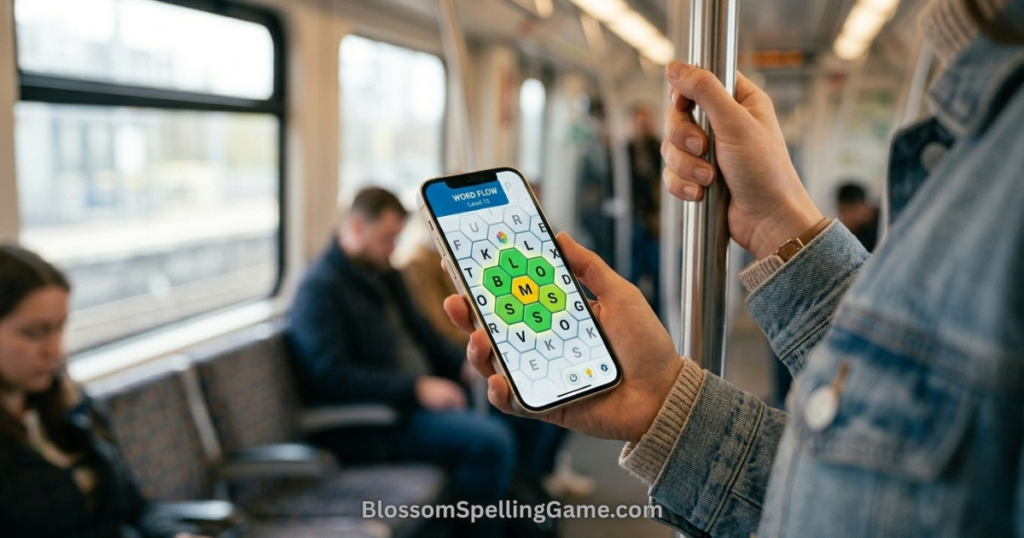
Many regular Blossom players don’t play exclusively on one device — they start a session on the phone during a morning commute, continue on a desktop at lunch, and finish on a tablet in the evening. Here’s how to make that cross-device experience seamless.
Create a BlossomSpellingGame.com account. This is the key step. With an account, your progress, streak, and score history sync across any device you log into. Without an account, your data lives locally on each device separately — which means playing on your phone doesn’t contribute to your laptop streak.
The puzzle state syncs automatically. Words you’ve already submitted on one device are visible when you open the game on another device (after a brief sync). You won’t accidentally submit the same word twice.
Browser bookmarks sync if you use the same browser. If Chrome or Safari is synced across your devices via your Google/Apple account, your BlossomSpellingGame.com bookmark is available everywhere without re-entering the URL.
Desktop for the pangram hunt. Some players deliberately reserve the pangram hunt for desktop or tablet, where the larger screen makes visual letter-scanning easier. They submit the more obvious words on mobile throughout the day, then sit down at a computer for the focused pangram search. This isn’t necessary, but it’s a legitimate strategy if you play on multiple devices naturally.
Data Usage and Battery Impact
Practical details that matter if you’re playing on cellular or have an older phone.
Data usage: BlossomSpellingGame.com is a lightweight web application. A typical daily session — loading the puzzle, submitting 12 words, viewing your score — uses roughly 0.1–0.3 MB of mobile data. This is negligible even on limited data plans. The daily puzzle assets (letters, graphics) are cached after the first load, so return visits within the same day use even less data.
Battery impact: The game has no animated backgrounds, no video, no processor-intensive graphics engine. It’s essentially a styled web page with interactive elements. Battery drain during a 20-minute Blossom session is minimal — comparable to browsing a text-heavy website. On a phone with a healthy battery, you won’t notice it.
Older devices: The game runs smoothly on phones several years old. If you’re on a device from 2018 or earlier, the web version at BlossomSpellingGame.com is more reliably smooth than some app versions, which may have been compiled for newer OS versions. When in doubt, browser over app on older hardware.
Accessibility on Mobile
A few accessibility considerations worth knowing for players who use assistive features.
Text size: BlossomSpellingGame.com respects the system text size settings on both iOS and Android to a reasonable degree. If you use large text settings system-wide, the game’s interface scales accordingly. The petal letter tiles themselves are graphic elements rather than system text, so they maintain consistent sizing independent of text scale settings.
Color contrast: The game’s color palette — green petals, amber bonus highlights, white center, dark letter text — has solid contrast ratios that work reasonably well for most types of color vision variation. The bonus petal letter (highlighted in yellow/amber) is the element most likely to be less distinct for players with certain color vision differences — if this is a concern, the app version of some platforms offers high-contrast theme options.
Screen readers: The tap-based letter selection interface isn’t fully optimized for screen readers in the current web version — if you rely on VoiceOver (iOS) or TalkBack (Android) for navigation, the browser version may present some challenges. The letter-tapping interface is inherently visual. If accessibility is a priority consideration, it’s worth testing both the app and browser versions directly on your device to see which works better with your assistive setup.
One-handed play: The flower grid is positioned centrally on screen in portrait mode, which makes one-handed play comfortable for most players — your thumb can reach all seven petals without shifting your grip. This makes Blossom a genuinely good commute game, where one hand is often holding a strap or rail.
FAQ
Can you play Blossom Word Game on a phone?
Yes. Blossom Word Game is fully playable on any modern smartphone — iPhone or Android — through a mobile browser or dedicated app. BlossomSpellingGame.com is specifically optimized for mobile play and requires no download.
Is Blossom Word Game free on mobile?
Yes. Playing Blossom on mobile via BlossomSpellingGame.com is completely free — no account, no subscription, no payment. The dedicated app is also free to download on iOS and Android, with optional premium features available but never required.
Does Blossom Word Game work on iPhone?
Yes. The game works in Safari, Chrome, and other browsers on all modern iPhones. For the best iPhone experience, open BlossomSpellingGame.com in Safari and optionally add it to your home screen via the Share → Add to Home Screen option.
Does Blossom Word Game work on Android?
Yes. The game works in Chrome, Firefox, and other browsers on Android devices. The experience is consistent across major Android manufacturers. You can add BlossomSpellingGame.com to your home screen via Chrome’s three-dot menu → Add to Home Screen for a quick-access icon.
Can you play Blossom Word Game on a tablet?
Yes — and tablet is arguably the best hardware for Blossom. The larger screen renders the flower grid at a comfortable size, letter selection is precise, and the overall experience is closest to playing on a desktop. iPad and Android tablets both work well via browser or app.
Does Blossom Word Game work without Wi-Fi on mobile?
The browser version requires a connection to load. If you open the game on Wi-Fi before going offline, the puzzle may stay cached for that session. For reliable offline play, the dedicated app downloads the daily puzzle when connected and allows offline play from that cached version. See the Blossom Word Game App Guide for full offline details.
Why do I keep mis-tapping the wrong letter on mobile?
This is most common on smaller phones. Three fixes: rotate to landscape mode for a larger grid, slow down your taps to be more deliberate, or switch to a larger device if available. Some players also find that tapping with a single fingertip rather than the pad of their finger improves accuracy significantly.
Does autocorrect interfere with Blossom on mobile?
It can, if you’re using a keyboard-input version of the game. The fix is to use the flower petal tap interface exclusively — tap letters directly on the grid rather than typing in a text field. If autocorrect interference persists, temporarily disable it in your phone’s keyboard settings during your Blossom session.
Will playing Blossom on my phone drain the battery?
Minimal battery impact. The game is a lightweight web application with no intensive graphics processing. A typical 20-minute session uses about the same battery as browsing a news website.
Can I switch between my phone and computer mid-puzzle?
Yes, if you have a BlossomSpellingGame.com account. Your progress syncs across devices automatically when you’re logged in. Without an account, progress is stored locally on each device separately and won’t carry over.
Final Thoughts
Can you play Blossom Word Game on mobile? Yes — and for many players, mobile is how they play it every single day. The commute version, the coffee-break version, the “I have seven minutes before my next meeting” version — Blossom fits a phone naturally.
The key to getting the most out of it on mobile comes down to three things: use the tap interface (not the keyboard), give it a dedicated few minutes of real focus rather than fitting it between notifications, and add BlossomSpellingGame.com to your home screen so it’s one tap away at any point in your day.
On a larger phone or tablet, the experience is genuinely excellent. On a smaller phone, a few adjustments — landscape mode, deliberate tapping, Do Not Disturb — make a real difference.
Today’s puzzle is already loaded and waiting at BlossomSpellingGame.com. Open it on your phone right now. It’s free, it takes thirty seconds to load, and the seven letters currently sitting in that flower grid won’t be there tomorrow.