
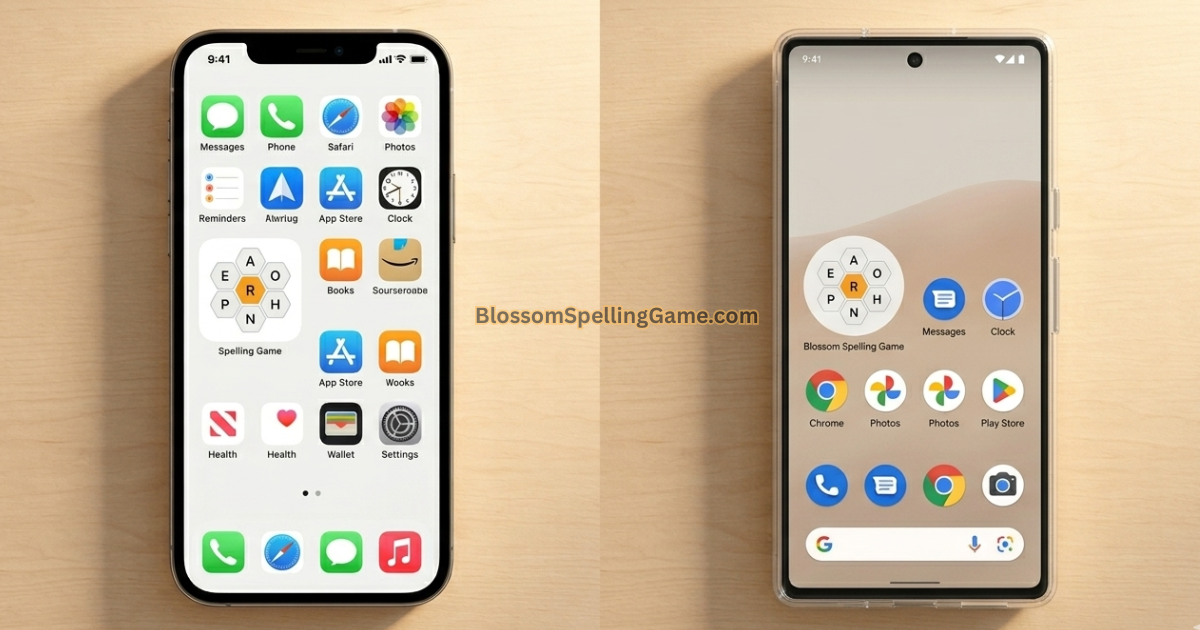
You’ve been playing Blossom in your phone’s browser for weeks. Typing the URL, waiting for it to load, squinting at the grid on a screen that’s slightly too small. At some point — probably around day twelve of your streak — a completely reasonable thought surfaces:
Isn’t there just an app for this?
It’s one of the most common questions new players ask, and the answer is more nuanced than a simple yes or no. Yes, there are dedicated Blossom Word Game apps. But the app landscape around this game is a little more layered than you might expect — there are official versions, third-party versions, and browser-based experiences that work so well on mobile they effectively function like apps without requiring a download.
This guide covers everything: where to find the app, what it actually offers beyond the browser version, how the iOS and Android experiences compare, what features are worth knowing about, and — honestly — whether downloading the app is even the right move for your playing style.
Let’s settle this properly.
Is There a Blossom Word Game App?
⚡ Answer Is : Yes — the Blossom Word Game is available as a mobile app on both iOS (iPhone and iPad) and Android devices. It’s free to download from the Apple App Store and Google Play Store. The core daily puzzle is free, with optional premium features available in some versions. There’s also a highly optimized mobile browser experience at BlossomSpellingGame.com that many players prefer over the dedicated app.
Here’s where things get slightly interesting: the “Blossom Word Game app” isn’t a single, monolithic product the way, say, Instagram is. Because the game has grown organically across multiple platforms — Merriam-Webster’s own site, independent puzzle platforms, and third-party app developers — there are a few different versions floating around app stores with similar names and gameplay. Knowing which one you’re looking at matters.
The core gameplay — seven letters, flower grid, center letter in every word, pangram bonus — is consistent across all legitimate versions. What varies is the surrounding experience: UI design, stat tracking, notification features, offline access, and whether premium options are pushed at you.
Where to Download the Blossom Word Game App
Finding the right app takes about thirty seconds if you know what to search for. Here’s exactly how to do it on each platform.
On iPhone or iPad (iOS)
- Open the App Store
- Tap the search bar and type “Blossom Word Game”
- Look for apps with the flower/petal icon and Merriam-Webster branding, or apps from established puzzle publishers
- Check the ratings and review count before downloading — higher review counts generally indicate the more established version
- Tap Get to download (it’s free)
The Merriam-Webster Blossom app, when available, is the most authoritative version because it uses the official Merriam-Webster dictionary as its word validation engine — the same word list that powers the web version. That dictionary credibility matters: words it accepts and rejects are consistent with what you’d find on the browser version.
On Android (Google Play)
- Open the Google Play Store
- Search “Blossom Word Game”
- Filter by rating and install count to identify the most-used version
- Check that the app is listed as free with no mandatory upfront payment
- Tap Install
A practical warning: App stores for word games have a lot of clones. Some apps use “Blossom” in their name but aren’t genuine versions of the puzzle you know from BlossomSpellingGame.com or Merriam-Webster. Before downloading, spend ten seconds scanning the screenshots — the authentic game has a distinct hexagonal flower layout with one clearly highlighted center letter. If the screenshots show something that looks like a generic word scramble, skip it.
Blossom Word Game App Features — What You Actually Get
The app isn’t just the browser game shrunk onto a smaller screen. Most versions add a meaningful layer of features that the basic web experience doesn’t include. Here’s what to look for:
Daily Puzzle (Core — Always Free)
Every legitimate Blossom app offers the same daily puzzle that resets at midnight Eastern Time. Same letters, same pangram, same scoring rules. This is the fundamental feature and it costs nothing.
Streak Tracking
This is where the app genuinely earns its place. The mobile app tracks your daily streak persistently — meaning it stores your consecutive-day play history even when you close the app, switch phones, or restart your device. Browser-based streak tracking can sometimes be fragile (clearing cookies, switching browsers, or going incognito can break it). The app keeps your streak tied to your account or device ID more reliably.
Push Notifications
The single feature that changes daily habit formation most dramatically. The app can send you a notification when the new puzzle drops, when you’re at risk of breaking your streak, or simply as a daily reminder at a time you set. This sounds minor until you realize how many “I forgot to play today” streak breaks are prevented by a single well-timed nudge on your lock screen.
Stats Dashboard
Most app versions include a personal statistics panel that browser play doesn’t always offer. This typically shows: total puzzles played, average score, best score, pangrams found, current streak, longest streak, and rank distribution across your play history. For players who are motivated by personal improvement — watching their average score climb week over week is genuinely compelling.
Score History and Word Review
After each puzzle ends, app versions typically let you review every word you submitted, every word you missed, and your total score breakdown. This post-game review is one of the most underused learning tools in the game. Seeing which words you missed — especially the pangram, if you didn’t find it — builds vocabulary in a way that passive play never does.
Optional Premium Features
Some versions offer optional upgrades — typically things like unlimited puzzle access (beyond the one daily), ad removal, additional themes or color schemes, or extended stat history. These are never required to play the daily puzzle. Whether they’re worth paying for depends entirely on how seriously you play.
App vs. Browser: An Honest Side-by-Side Comparison
This is the comparison most players actually need. Here’s the full breakdown:
| Feature | Mobile App | Browser (BlossomSpellingGame.com) |
| Daily puzzle access | ✅ Free | ✅ Free |
| Download required | Yes | No |
| Push notifications | ✅ Yes | ❌ No |
| Streak tracking | ✅ Reliable, account-tied | ✅ Good (cookie-based) |
| Stats dashboard | ✅ Full history | ✅ Session stats |
| Offline play | ✅ Yes (downloaded puzzle) | ❌ Requires connection |
| Cross-device sync | ✅ With account login | ✅ With BlossomSpellingGame.com account |
| Past puzzle archive | Varies by app version | ✅ Available |
| Screen optimization | ✅ Native mobile UI | ✅ Responsive design |
| Storage used | ~50–100MB | None |
| Update required | Occasionally | Never |
| Ads | Some versions | Minimal display ads |
The honest takeaway: for casual daily players, the browser experience on BlossomSpellingGame.com is nearly as good as the app — and requires zero storage or downloads. For habit-focused players who want notifications, persistent stats, and offline access, the app earns its place on your home screen.
One thing I’ve noticed switching between the two: the app version tends to feel slightly snappier for letter-tapping on a phone, because native mobile apps are built specifically for touch interactions in a way browser-based games can’t fully replicate. It’s a subtle difference, but it’s real.
iOS vs. Android: Are There Any Differences?
For most players, the iOS and Android versions of Blossom are functionally identical — same puzzle, same scoring, same daily reset. But there are a few practical differences worth knowing:
UI and animation: iOS apps on newer iPhones tend to have slightly smoother animations, largely because of how iOS handles app rendering. On newer Android flagships, this difference is negligible. On older Android devices, the browser version via Chrome can sometimes run more smoothly than an older cached version of the app.
Notification granularity: iOS allows slightly more control over notification timing and types through the Settings app. Android’s notification system is more open by default, which means some Android users find the app sends reminders more aggressively until they adjust the settings themselves.
App availability timing: When app updates roll out, iOS versions sometimes receive them slightly before Android. This usually only matters for new feature releases — the daily puzzle content is identical on both platforms.
Widgets: Some iOS versions support a home screen widget that shows a mini version of today’s puzzle or your current streak. This is one of the genuinely iOS-exclusive features. If you’re an iPhone user who loves home screen customization, look for this in the app’s widget settings — it’s a small touch that keeps the game visible without requiring you to actively open it.
iPad experience: The iPad version of the app benefits from more screen real estate. The flower grid renders larger, making individual letter-tapping more comfortable and reducing mis-taps. If you have an iPad available, it’s legitimately the best hardware for playing Blossom — the grid just fits a tablet screen naturally.
Does the Blossom App Work Offline?
This comes up a lot — usually from players who commute by subway or travel frequently in areas with spotty connectivity.
Short answer: Yes, with nuance.
Most legitimate Blossom app versions download the current day’s puzzle when you have an internet connection, which means that specific puzzle can be played offline once it’s been loaded. If you open the app while you have Wi-Fi in the morning, the puzzle data is cached and available even if you lose connection on your commute later.
What doesn’t work offline:
- Loading a puzzle you haven’t opened yet — if the app hasn’t downloaded today’s puzzle while connected, you’ll need a connection to fetch it
- Syncing your score and stats to a server-side account — these sync when you reconnect
- Accessing the past puzzle archive — archive content is typically fetched live
Practical tip for commuters: Open the app and let the puzzle load while you’re still on Wi-Fi at home. Even just glancing at the letters for a second ensures the puzzle data is cached. Then close the app and open it again on the train — it’ll be there.
The browser version on BlossomSpellingGame.com does not work offline by default, though modern browsers with “Add to Home Screen” (progressive web app functionality) can cache the game’s core files with varying reliability depending on your browser and device.
Notifications and Streak Reminders on the App
If there’s one feature that converts casual players into committed daily players, it’s push notifications. And the app does this meaningfully better than any browser-based alternative.
Here’s what most Blossom app versions offer in terms of notifications:
Daily puzzle reminder: Set a time — say 8:30 AM — and the app sends a notification: “Your daily Blossom puzzle is ready.” That’s all it takes for most people to build the habit. The notification doesn’t interrupt anything; it just appears on your lock screen as a nudge.
Streak protection alert: This is the clever one. If you haven’t played by a certain point in the day — usually a few hours before midnight ET — the app can send a “Don’t break your streak!” reminder. For players who are streak-motivated, this is genuinely useful. It’s caught many a near-miss at 11:45 PM.
Setting up notifications correctly: When you first install the app, it will ask permission to send notifications. Say yes — you can always dial back the frequency in settings later. If you accidentally declined, go to your phone’s Settings → Notifications → [App Name] and enable them manually.
One honest caveat: Notifications are only as useful as your response to them. If you find yourself dismissing the reminder and not playing anyway, the app isn’t solving a habit problem — it’s surfacing one. The notification is the prompt; the decision to act is still yours.
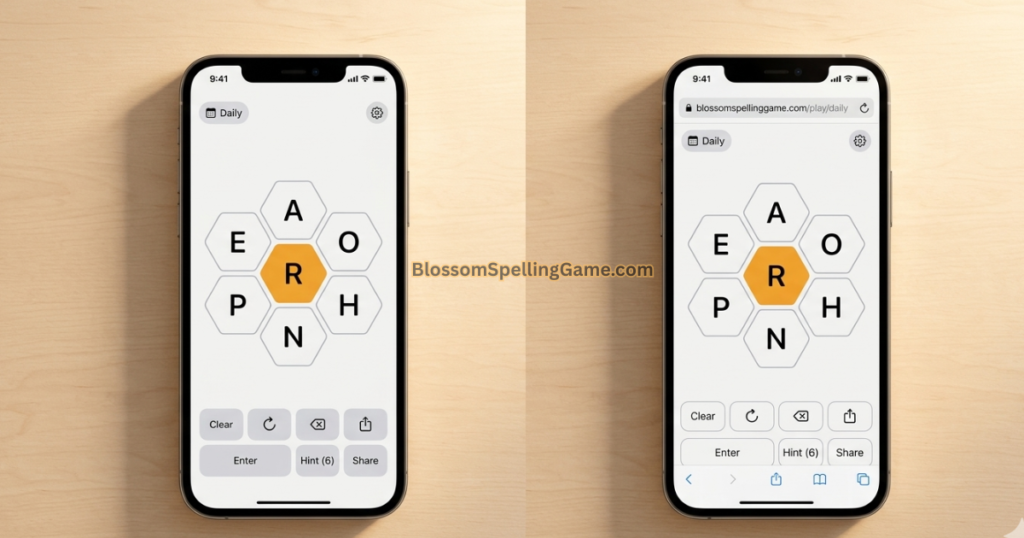
BlossomSpellingGame.com on Mobile — The Browser Alternative That Works Like an App
Here’s something many players don’t realize: BlossomSpellingGame.com is built as a progressive web app (PWA), which means it’s specifically designed to behave like a native app even though it runs in your browser.
What this means practically:
“Add to Home Screen” functionality: On both iOS Safari and Android Chrome, you can add BlossomSpellingGame.com directly to your phone’s home screen. It gets its own icon, launches without browser chrome (no URL bar, no tabs visible), and feels nearly indistinguishable from a downloaded app. This takes about fifteen seconds to set up:
- iOS Safari: Open BlossomSpellingGame.com → tap the Share button (box with arrow) → tap “Add to Home Screen” → tap “Add”
- Android Chrome: Open BlossomSpellingGame.com → tap the three-dot menu → tap “Add to Home screen” → tap “Add”
Once you’ve done this, the experience is a proper app icon on your home screen that opens directly into the game. No App Store, no storage footprint, no updates to manage.
What this version offers:
- Full daily puzzle access (free, always)
- Streak tracking tied to your account
- Score history and past puzzle archive
- Clean mobile-optimized interface
- Minimal advertising
- Instant access — no download wait, no storage used
For many players — especially those with limited phone storage or those who prefer not to have another app notification competing for attention — this is the better option. You get the game on your home screen without any of the app overhead.
Which Version Should You Actually Use?
Here’s the honest recommendation, broken down by player type:
You should use the dedicated app if you:
- Want push notifications to remind you to play
- Travel frequently and need offline access
- Are streak-obsessed and want the most reliable streak tracking
- Enjoy checking detailed personal stats over time
- Have an iPad and want the best screen experience
You should use BlossomSpellingGame.com (browser or Add to Home Screen) if you:
- Don’t want to use phone storage on another app
- Prefer minimal notifications in your life
- Want access to the past puzzle archive
- Play primarily on desktop or laptop
- Are a casual player who doesn’t need stats tracking
- Want zero setup time — just open and play
The bottom line: Both options deliver the same daily puzzle. The differences are entirely about your personal habits, preferences, and what makes you more likely to actually play every day. There’s no wrong answer — only the one that fits your routine better.
Common App Issues and How to Fix Them
A few problems come up repeatedly in player communities. Here’s the quick-fix list:
App shows yesterday’s puzzle after reset Force-close the app completely and reopen it. If that doesn’t work, check your internet connection — the app needs to fetch the new puzzle data. Still stuck? Go to your phone’s Settings → [App Name] → Storage → Clear Cache.
Streak disappeared despite playing every day This usually happens when the app loses its local data — after a phone reset, app reinstall, or if you were playing as a guest without an account. Always create an account (even just an email login) to tie your streak to server-side storage rather than just the device.
Letters aren’t responding to taps Usually a rendering glitch. Force-close and reopen. If persistent, try uninstalling and reinstalling — this clears corrupted cached data.
Notifications stopped arriving Check two places: (1) your phone’s system settings — iOS sometimes resets notification permissions after an iOS update; (2) the app’s internal settings — some updates reset notification preferences to default (off). Re-enable in both places.
App crashes on launch Most commonly caused by an outdated app version. Go to the App Store or Play Store, search the app name, and update if an update is available. Older versions sometimes conflict with newer OS versions.
Score not syncing across devices Ensure you’re logged into the same account on both devices. If playing on browser and app simultaneously, sync happens when you complete a puzzle — not in real-time during play.
FAQ
Is there a Blossom Word Game app?
Yes. The Blossom Word Game is available as a free mobile app on both iOS (Apple App Store) and Android (Google Play Store). The core daily puzzle is always free to play.
Is the Blossom Word Game app free to download?
Yes — the app is free to download and the daily puzzle requires no payment. Some app versions offer optional premium upgrades (ad removal, unlimited puzzles, extended stats), but these are never required to play the standard daily game.
Does the Blossom app work on iPad?
Yes, and the iPad experience is arguably the best hardware option for playing Blossom. The larger screen makes the flower grid easier to interact with and reduces mis-taps on individual letters.
What’s the difference between the app and playing in a browser?
The main advantages of the app over the browser are push notifications, more reliable offline access, and a native mobile UI optimized for touch. The browser version (especially BlossomSpellingGame.com) offers equivalent puzzle access with the added benefit of a past puzzle archive and no storage footprint.
Can I add Blossom to my iPhone home screen without downloading an app?
Yes. Open BlossomSpellingGame.com in Safari, tap the Share button, then “Add to Home Screen.” This creates a home screen icon that opens the game directly — no App Store download needed.
Does the Blossom app work offline?
Yes, once the current day’s puzzle has been loaded while connected. If you open the app on Wi-Fi before going offline, you can play the downloaded puzzle without a connection. Stats sync when you reconnect.
Will my streak transfer if I switch from browser to the app?
It depends on whether you have an account on both platforms. If you play on BlossomSpellingGame.com with an account and log into the same account on the app, your streak should carry over. Guest play (without an account) typically doesn’t transfer between platforms.
Are there notifications in the Blossom app?
Yes. Most app versions allow you to set daily puzzle reminders and streak protection alerts. These are opt-in — enable them in the app’s settings or when prompted during setup.
Is the Blossom app available in all countries?
The app is primarily designed for US players and uses American English (Merriam-Webster’s dictionary). It’s available in most English-speaking markets through the App Store and Google Play, though availability can vary by region.
Which is better — the app or BlossomSpellingGame.com?
Neither is strictly “better” — they’re optimized for different playing styles. The app suits habit-focused players who want notifications and offline access. BlossomSpellingGame.com suits casual players who want instant access without downloads, plus access to the past puzzle archive. Both deliver the same daily puzzle experience.
Final Thoughts
So — is there a Blossom Word Game app? Yes, and it’s genuinely worth considering if you’re a daily player who wants notifications, offline access, and a persistent stats tracker living on your home screen.
But here’s the nuance most “Is there an app?” articles skip: the browser experience at BlossomSpellingGame.com is so well-optimized for mobile — especially once you’ve added it to your home screen — that many players never feel the need to download a separate app at all. Same puzzle, same daily reset, same satisfaction of finding the pangram. Just without the storage footprint and notification overhead.
Try both. Spend a week with the app, a week with the browser shortcut, and see which one you actually reach for first in the morning. That instinct tells you everything you need to know about which version fits your life.
Either way — the puzzle resets tonight at midnight Eastern Time. Your next seven letters are already waiting.
Play today’s puzzle at BlossomSpellingGame.com — no download required.